"Can we add a chatbot to the site?" used to be a question that landed on an engineering backlog and stayed there for weeks. If you've been putting off figuring out how to add a chatbot to your website because it sounds like a project that needs a sprint and a ticket, the good news is that assumption is out of date. The actual setup, for most businesses, is a single afternoon - the part that takes longer is getting your content ready, not the integration itself.
1. Why This Used to Require a Dev Team (And Doesn't Anymore)
Chatbot integrations used to mean a custom backend connection, a bespoke UI component, and an engineer owning the maintenance afterward - a real project, not a quick add. That's shifted meaningfully as vendors moved to a script-tag model that behaves more like installing an analytics snippet than integrating a product feature. Related reading: read the full buyer's guide before choosing a tool.
The Old Way: Custom Integration
A traditional chatbot build meant backend API work to connect a knowledge source, custom frontend code for the widget itself, and ongoing engineering ownership every time something needed updating - a fair amount of overhead for what's often a support tool, not a core product feature.
Do You Really Need Engineering At All?
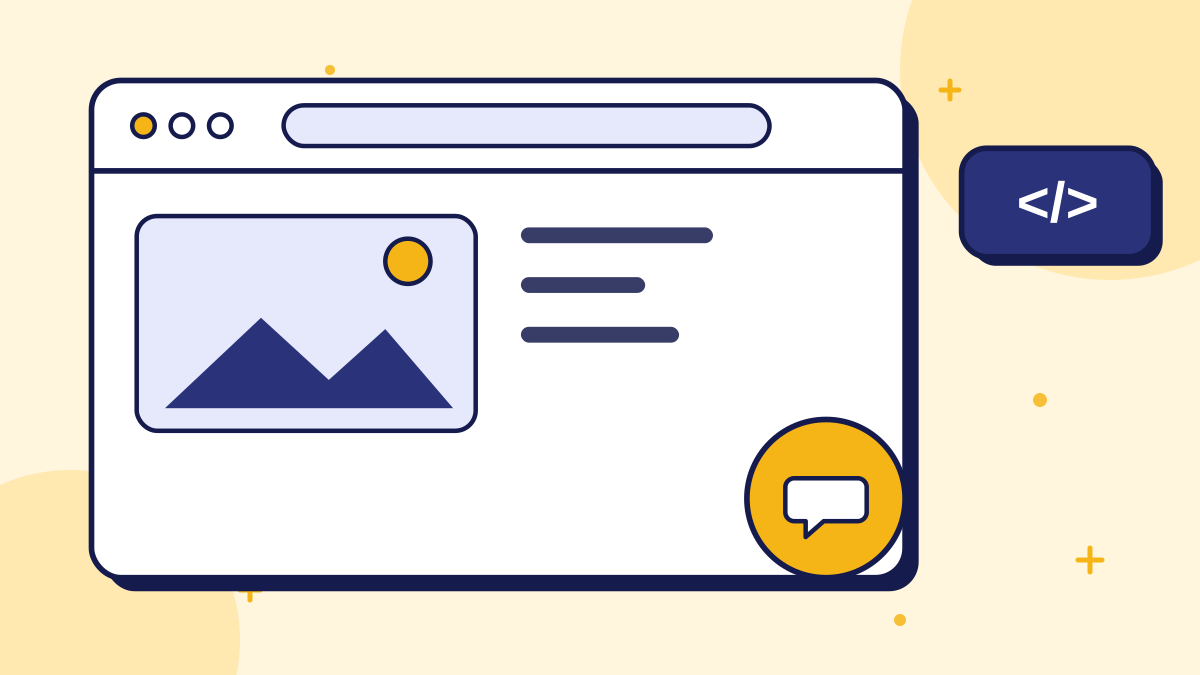
For the initial setup, typically no. Most current chatbot tools use a single script tag added to your site's `<head>` or before the closing `</body>` tag - the same integration pattern as Google Analytics or a marketing pixel, not a development project. Adoption reflects this shift: Salesforce's *State of Service: AI Agents Edition* 2026 report found AI agent adoption in customer service organizations rose from 39% to 66% in a single year, a pace that wouldn't be possible if every business needed a dedicated engineering project to get started. Gartner projects conversational AI will cut contact-center labor costs by $80 billion by 2026, built largely on automating the simpler, high-volume interactions this kind of self-serve setup targets first.
Pro Tip: If a chatbot vendor's onboarding process starts with "let's schedule a call with your engineering team," that's a signal you're looking at a legacy custom-integration product, not a script-tag widget tool.
2. Before You Add Anything: Get Your Knowledge Base Ready
The setup itself is fast. What actually takes time - and what most guides skip - is preparing the content the chatbot will answer from, because a chatbot is only as good as what you give it to work with.
Turning Your FAQ Into Q&A Pairs
Rather than pasting in a long policy document or product page, structure your content as explicit question-and-answer pairs: "What's your return policy?" paired with the actual answer, not a paragraph the bot has to interpret. Specific Q&A pairs retrieve more reliably than long unstructured text, and they're easier for you to audit later.
How Much Content Do You Actually Need to Start?
Less than most people assume. A focused set of 20-40 Q&A pairs covering your most repeated questions - pricing, hours, shipping, common troubleshooting - covers the bulk of real customer questions for most small businesses. You can expand from there based on what the chatbot's unanswered-question log shows you're actually missing.
What NOT to Dump Into a Chatbot
Avoid pasting in your entire website, every blog post, or internal documents not meant for customers. More content isn't automatically better - a bloated knowledge base makes retrieval less precise and increases the chance of surfacing an irrelevant or outdated answer. Related reading: why a narrow, well-structured knowledge base matters.
Pro Tip: Start narrow and expand based on real gaps, not assumptions - your unanswered-question log after week one will tell you far more about what to add than guessing upfront.
3. The Actual Setup: From Signup to Live Widget
Once your Q&A pairs are ready, the technical part is genuinely quick - this is the step most people overestimate, largely because it used to be a real engineering project and the reputation stuck around after the process changed.
Most platforms ask where to paste the script tag, and the answer depends on your website tool. Many website builders have a field for custom code in the site settings or footer, and content management systems often provide a similar option through settings or a plugin. If you are unsure, ask whoever manages your site to paste one line for you; it takes minutes. Remember to clear any caching so the widget appears.
Step-by-Step Setup
Related reading: see ConvoRail's setup and pricing.
- 1Sign up and create your knowledge base by entering your Q&A pairs directly into the dashboard.
- 2Set your fallback response for questions outside your knowledge base - an honest "I don't know, here's how to reach us" rather than leaving it default.
- 3Customize the widget - color, position, greeting message - to match your site's branding.
- 4Copy the provided script tag into your site's template, header, or footer include (the same place you'd add an analytics script).
- 5Publish and test it live with a handful of real and intentionally out-of-scope questions before pointing customers at it.
Where This Usually Goes Wrong
The most common setup mistake isn't technical - it's skipping the fallback-response step and leaving a default, generic "I'm not sure" message that doesn't actually help a customer get to a human when needed. The second most common mistake is publishing without testing an out-of-scope question, which means the first time anyone finds a gap is when a real customer hits it. That gap matters more than it might seem: a Forrester Consulting survey conducted for Cyara found 30% of consumers abandon a brand entirely after a single bad chatbot experience, which is exactly the scenario an untested fallback response creates.
Pro Tip: Test your fallback response like a customer would before going live - ask it something you know isn't in your knowledge base and make sure the response actually points somewhere useful.
4. After It's Live: What to Check in Week One
Going live isn't the finish line - the first week of real customer questions is where you find out whether your knowledge base actually covers what people ask, versus what you assumed they'd ask.
Also tell your team the chatbot exists. Anyone who answers email or phone should know what the bot says, how handoffs reach them and how to correct an answer. A chatbot that lives in one person's head tends to be neglected, while one that the whole team knows about improves steadily.
Reading Your Unanswered-Questions Log
This is the single most useful thing to check daily in week one. Every question the chatbot couldn't answer is a direct, specific signal of a gap - far more reliable than guessing what content to add upfront.
When to Expand vs. When to Leave It Alone
Expand your knowledge base when the same type of question keeps showing up unanswered. Leave it alone when a gap is a genuine one-off - chasing every single unanswered question with a new Q&A pair can bloat the knowledge base faster than it improves coverage.
Do You Need to Redesign Your Site to Add a Chatbot?
No. A script-tag widget sits on top of your existing site without touching its layout, CMS, or codebase - it's additive, not a redesign, which is part of why the setup timeline is measured in hours, not sprints.
Pro Tip: Set a recurring 10-minute weekly check on the unanswered-questions log for the first month - after that, most businesses find the gaps shrink fast and the review can move to monthly.
Summary
Adding a chatbot to a website stopped being an engineering project once script-tag widgets replaced custom integrations - the real work moved from development time to content preparation. Businesses that treat the knowledge base setup seriously, keep it narrow at launch, and actually read the unanswered-questions log in week one get a chatbot that answers accurately from day one instead of one that just looks installed.
If you've been putting off adding a chatbot because it sounds like an engineering project, it's worth checking whether that's still actually true for the tool you're considering.
Key takeaways
- Script-tag chatbot widgets install the same way as an analytics snippet - no backend development or dedicated engineering project required for most businesses.
- AI agent adoption in customer service rose from 39% to 66% in a single year, a pace reflecting how accessible setup has become (Salesforce State of Service: AI Agents Edition, 2026).
- A focused 20-40 Q&A pairs covering your most common questions is enough to launch - expand later based on real gaps, not upfront guessing.
- The most common setup mistake is a generic fallback response, not a technical error - test it like a customer would before going live.
- The unanswered-questions log is the most reliable signal for what to add to your knowledge base next, far more useful than guessing.
- A chatbot widget is additive to your existing site - it doesn't require a redesign, CMS change, or codebase modification to install.
Quick Summary
How to add a chatbot to your website without a dev team comes down to two things: a script-tag widget that installs like an analytics snippet rather than a custom integration, and a properly prepared knowledge base of structured Q&A pairs rather than a dumped-in FAQ page. The setup itself - signup, knowledge base entry, fallback response, widget customization, script tag, and testing - typically takes an afternoon, while ongoing accuracy depends on regularly reviewing the unanswered-questions log in the weeks after launch, as adoption data from Salesforce's 2026 State of Service report shows this kind of self-serve setup is now the norm rather than the exception.
Want to see grounded answers on your own site?
Start free, add your Q&A pairs and paste one script tag. No credit card required.

Founder & CEO
Writes about grounded AI chatbots for websites: how they work, how to measure them and what to check before you buy.
Topics
Get new posts by email
Guides on AI chatbots for websites, straight to your inbox.